What happens after Relay Autobooker books a load?
Getting Started & Usage
What happens after Relay Autobooker books a load?
Getting Started & Usage
After a booking, Relay Autobooker Cardamon shows a Booked message that says "Load booked" with the trip id when Amazon names it, puts a green Booked chip on the load's card and turns the panel's Book button into a disabled Booked. The message stays on screen until you close it, so it is still there when an alert brings you back to the Amazon Relay board.
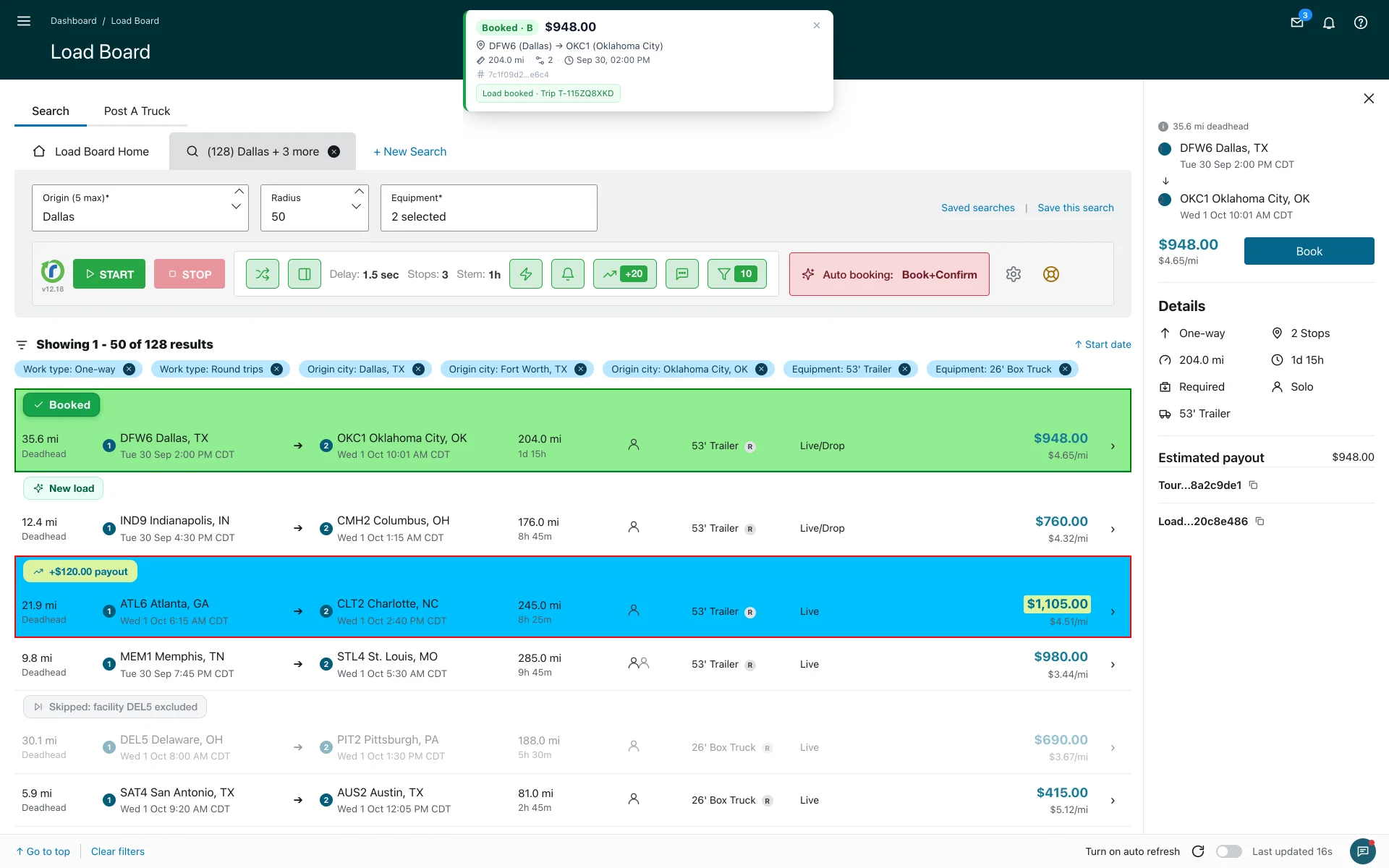
The Booked message
The message appears at the top of the page with the load in it. Since version 12.12 it stays until you click it to close, which matters when the booker works while you are away. Several messages stack, newest on top, so a busy hour leaves you a list to read. The browser tab title also flashes with the booked load's payout, so you can spot a booking from another window.
"Load booked" carries the trip id whenever Amazon names it in its answer. Use it to find the trip in Relay.
The Booked chip and the Booked button
- The booked load's card gets a green Booked chip. It stays until Amazon's next list drops the load.
- The panel's Book button, or AUTO CONFIRM standing in for it, turns into a disabled Booked, so you cannot book the same load twice from the panel.
Why Super Fast shows no Amazon screen
Regular and Fast press Amazon's own Book and Confirm buttons, so Amazon draws its "Your trip is booked" screen as it would for a booking by hand. Super Fast sends the booking itself without opening the load, so Amazon draws nothing of its own. The booker's message, chip and Booked button are your confirmation.
The load is in Trips. Open Relay's Trips page and look for the trip id from the message. Versions before 12.12 sometimes showed "Failed · Check the load board" for a Super Fast booking that Amazon had accepted without a written answer. If you run an older version and see that message, check Trips before you assume the load is gone.
What a Failed message means
A Failed message means Amazon did not book the load, and since version 12.9 the message carries Amazon's own reason, as Amazon wrote it. Read it, close it and let the booker carry on.
A load the booker could not open stays bookable by hand. Click Book on it right away if you still want it.
When to press Start again
- After a booking succeeds or returns an error, press Start again to keep booking. Since version 12.7 you do not need to reload the page.
- Stop on new and Stop on payout change survive a reload and a tab switch. Press Start when you are ready; the first refresh sets the starting point.
- If you press Start again without booking a flagged load, its card gets a muted "Skipped by you" chip so you can see what you passed on. The chip resets when you change filters or reload.
- A running booker stops when you switch to another of Relay's own search tabs on the page (Start is greyed out on a tab without search results). Come back to the tab and press Start.
Your Booking Strategy decides what you see. Booking Strategies lists the steps each one takes and skips, and what appears after the booking.
More about getting started & usage
Last updated September 17, 2026. See what changed in the changes history.
Need Help?
Contact our support team at support@cardamon.org